File uploader
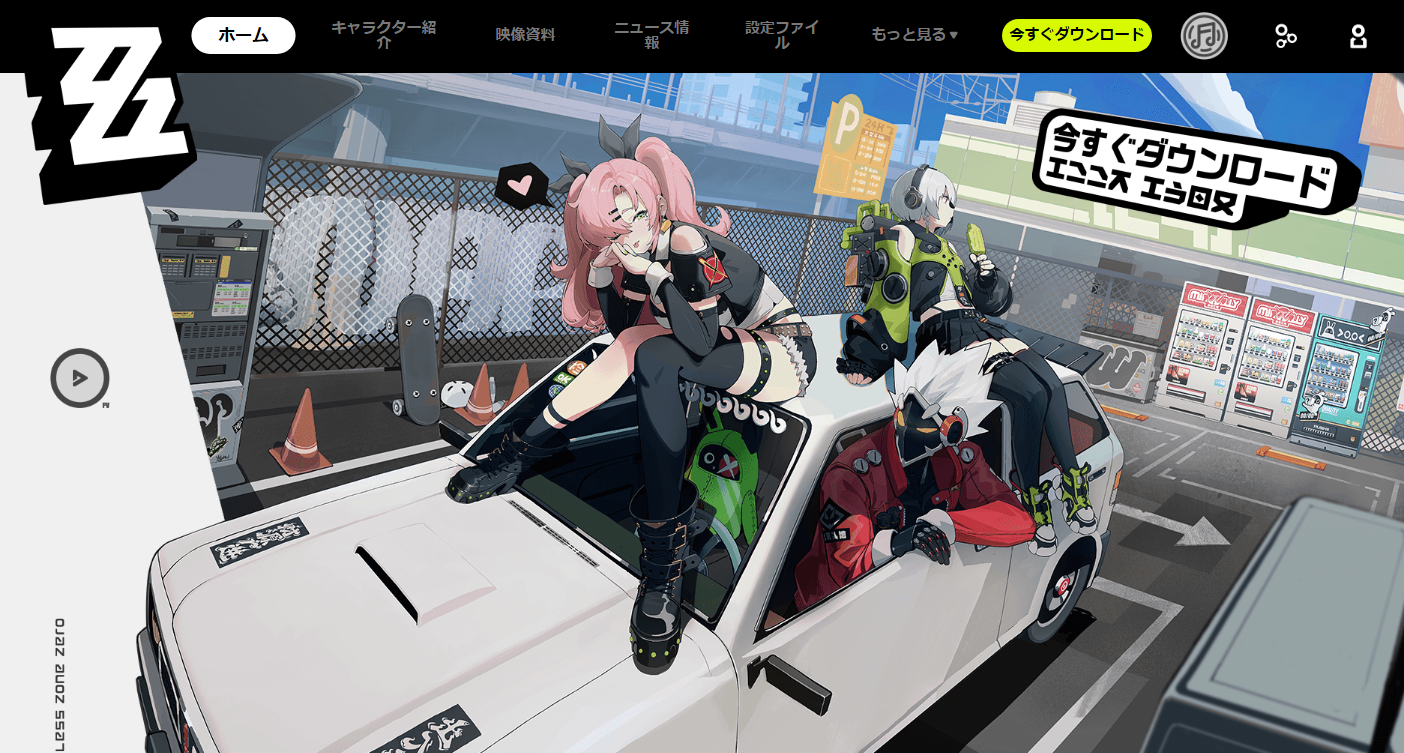
How to Share Screenshots from Zen Zero
In 'Zenless Zone Zero (Zen Zero)', you can use the in-game camera to save photos of your favorite characters and landscapes within the game.
Once you've taken screenshots, you may want to share them with friends, post them on social media, or show them to others instead of just saving them on your device.
Especially when you want to share multiple screenshots at once, it's more convenient to upload the images together and share the URL than to send them one by one via social media or messaging apps.
This article introduces how to take and save screenshots in Zen Zero, as well as how to share multiple images at once.
How to Capture Screenshots in Zen Zero
Zen Zero provides an in-game camera, which you can activate to take photos of the desired location.
The method of activating the camera varies depending on the device you are playing on, such as PC, PS5, or smartphone; however, the basic idea is to open the in-game camera and adjust the angle and zoom before taking the photo.
At the shooting screen, you can use filters, allowing you to create photos with a slightly different atmosphere than regular screenshots.
When you pay attention to the character's poses, expressions, and backgrounds, you can enjoy them not only as strategy screenshots but also as commemorative photos.
Saving Captured Screenshots to Your Device
Photos captured in Zen Zero can be saved to your device by performing save operations after taking them.
On smartphones, they are saved to the device's designated photo/image storage location, while on the PC version, they are saved in the 'Screenshot' folder found within the game's installation directory.
If you're unsure where the save location is on the PC version, checking the game's installation path from the game launcher can make it easier to find.
Moreover, before sharing the photos, it is reassuring to check that player names or UIDs are not visible.
How to Send Zen Zero Screenshots to Friends
There are several ways to share your saved screenshots.
- Sending them via messaging apps like LINE
- Posting them on social media
- Sharing images on Discord
- Uploading them to cloud storage
- Issuing a URL via file-sharing services
If you're only sending one screenshot, using your usual messaging app or social media is sufficient.
However, if you want to share dozens of Zen Zero screenshots at once, it is convenient to upload the images as a file and send the URL to the recipient.
File Sharing is Convenient for Bulk Sharing of Screenshots
For example, if you want your friends to see 30 or 50 of your favorite photos taken in Zen Zero, sending each image one by one can be a bit troublesome.
In such cases, you can upload the screenshots to a file-sharing service and send the issued URL.
The recipient only needs to open the URL to view the shared files, so there's no need to attach multiple images to a message.
If you're on PC, there are services where you can simply select screenshots and drag & drop them to upload. These services can also be used from smartphones, making them easy to use regardless of the device.
Using UploadF for Sharing Zen Zero Screenshots
If you want to share multiple Zen Zero screenshots, a free file uploader like UploadF is also an option.
UploadF can be used from both PC and smartphones, allowing you to upload multiple files at once.
When using it from a PC, you can select images from the folder where you saved the screenshots and drag & drop them to upload.
Uploaded files are provided with a URL for sharing, so you can send that URL to friends and share screenshots all at once.
Additionally, depending on the images you share, you may want to keep them for a long time or only need them for a short period. With UploadF, you can set the storage duration based on your needs.
Points to Remember When Sharing Zen Zero Screenshots
When sharing screenshots, it's not just enough to upload them; it's also a good idea to check a few things for peace of mind.
- Check if player names or UIDs are visible
- Check if personal information is visible
- Select only the images you want to share
- Upload multiple images at once
- Delete shared files that are no longer needed
Especially in game screenshots, even if the game screen itself is fine, sometimes profile information might be displayed alongside it.
If you're sharing with an unspecified number of people, it's advisable to edit the images before sharing as needed.
Hiding UIDs and Names Before Sharing Screenshots
Zen Zero's photo capture feature allows you to hide the player's name or UID when saving.
While this may not be a concern for personal sharing with friends, it's recommended to check once before posting on social media or message boards where many people will see it.
If you want to edit already saved images, you can use image editing software or online image editing tools.
For example, you can hide parts of the image with a mosaic, trim unnecessary sections, or change the image size before sharing for a more secure public presentation.
How to Edit Screenshots Before Sharing
In Zen Zero, you may want to keep the desired areas like characters and backgrounds while removing unnecessary information.
In such cases, it is useful to edit the image before uploading.
For example, you may consider the following types of editing.
- Hiding UIDs and names with a mosaic
- Trimming unnecessary UI elements
- Reducing image size
- Rotating or flipping the image
- Adding a watermark to the image
- Making the background transparent
UploadF also has online image editing features that can be used when uploading images, accommodating editing such as mosaic, trimming, resizing, rotating, flipping, transparency, and watermarking.
If you find it troublesome to install separate software just to edit images, using these online tools can be a good solution.
How to Share Zen Zero Screenshots as a ZIP File
If the number of screenshots is very large, you can also share them by compiling the images into a ZIP file.
For instance, if you want to give your friends all the screenshots captured this time, organizing multiple images into a single file makes it easier to manage.
UploadF allows handling multiple files together, and it also has features for listing or Zipping images together.
When you have 10 or 20 screenshots, it's more convenient to share them together than to send them one by one.
Summary of Zen Zero Screenshot Sharing Methods
In Zen Zero, you can use the in-game camera to save photos of your favorite characters and landscapes.
If you're just sending one screenshot to a friend, there's no problem using your regular social media or messaging app.
On the other hand, if you want to share a large number of screenshots at once, using a file-sharing service allows you to do it with just one URL, which is convenient.
Especially if you want to organize and share many screenshots from a PC, or easily upload images from a smartphone, try the free UploadF.
When you want to show your favorite screenshot taken in Zen Zero to your friends, or if you want to say, 'I want you to see all the screenshots I took this time,' file upload sharing is very helpful.
Top Help Contact 🌐Language