File uploader
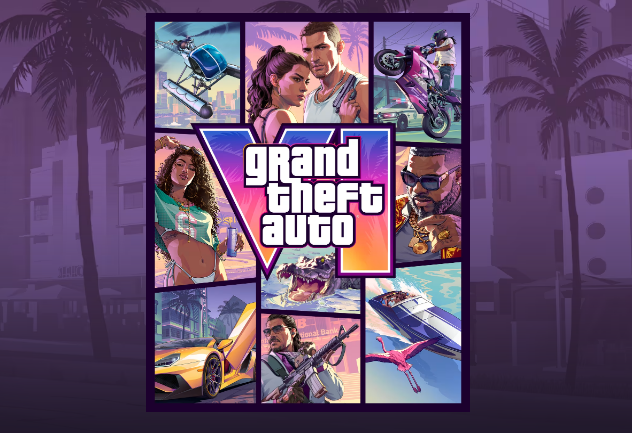
How to Share Screenshots of GTA6
When playing GTA6 (Grand Theft Auto VI), there are many moments that will make you want to take screenshots.
Whether you're taking pictures of your favorite car, capturing the protagonist Jason or Lucia, or recording the vast landscapes of Leonida State, sharing the images captured in the game with friends is one of the joys.
However, after taking screenshots, have you ever faced issues like these?
- I want to send images taken on the console to my smartphone
- I want to send screenshots to friends all at once
- I want to organize images before posting them on social media
- I want to share multiple images without losing quality
- I want to show images only to my gaming friends
GTA6 screenshots can be saved and shared using the capture features of PS5 and Xbox.
Additionally, if you want to send multiple images at once, using a file sharing service is a convenient option.
How to Capture and Share Screenshots in GTA6 on PS5
On PS5, you can take screenshots using the Create button on the DualSense controller.
The basic steps are as follows:
- Press the Create button on the controller while playing GTA6
- Select "Take Screenshot"
- Check the captured images in the Media Gallery
- Select the images you want to share and send them
Furthermore, by using the PlayStation App, you can view the screenshots taken on PS5 from your smartphone.
If you enable automatic upload for captures beforehand, the corresponding screenshots will be automatically uploaded.
On the smartphone side, you can open "Captures" from the "Library" in the PlayStation App to save images or share them using suitable apps.
The captures accessible via the app are available for 14 days from creation on PS5. Be sure to download images that you want to keep for a long time to your smartphone or elsewhere.
For more details, you can refer to the official PlayStation capture sharing guide.
How to Capture and Share Screenshots in GTA6 on Xbox
On Xbox Series X|S, you can also take screenshots using the console's capture function.
If you have a controller with a Share button, you can take screenshots with just one press of the button.
You can check the captured images using the following steps:
- Press the Xbox button on the controller
- Open "Capture and Share"
- Select an image from "Recent Captures"
- Choose a recipient from the sharing menu
By using the Xbox app, you can also view and save uploaded screenshots from your smartphone.
If you save the captured images to your smartphone, it's easy to send them to friends using LINE or Discord.
How to Send Multiple Screenshots at Once
If you only have one screenshot, using the console's sharing feature or posting on social media is often sufficient.
However, if you have taken multiple photos in GTA6, it can be surprisingly tedious to select and send them one by one.
For example, if you want to show friends images like these:
- A screenshot of your favorite car
- A photo of a stunning view found in-game
- Images of Jason or Lucia
- A record of funny bugs or rare events
- Images taken during online play with friends
If you want to share such images collectively, using a file uploader is recommended.
By uploading the images once and issuing a shareable URL, you can simply send that URL to your friends and they can receive the files.
There’s no need to ask them to register an account or use the same console.
Using the Free File Sharing Service "UploadF"
If you want to share multiple screenshots together, the free file uploader UploadF is convenient.
UploadF is a web service that allows you to upload and share files from your browser. It's compatible not only with PCs but also with smartphones, allowing you to share images moved from the console to your smartphone directly.
The usage is simple.
- Access UploadF
- Select the screenshots you want to share
- Begin uploading
- Copy the issued share URL
- Send the URL to friends via LINE, Discord, etc.
That’s all it takes to share images.
UploadF has the following features:
- Completely free to use
- Supports both PC and smartphone
- Can upload via drag & drop
- Can upload up to 100 files simultaneously
- Storage period can be set from 1 day to unlimited
- Supports password protection
- Allows deletion of individual files
Especially convenient is the ability to upload multiple files simultaneously.
If you select the taken screenshots together, there's no need to issue a share URL for each image one by one.
Additionally, since you can set a storage period, it's a user-friendly service if you want to temporarily pass images to a friend.
If you want to show images only to selected friends, you can also set a password for sharing.
When you want to share game screenshots at once, definitely try using UploadF.
Use the free file sharing service UploadF
Points to Note When Sharing Screenshots
When sharing game screenshots, there are several points to be careful about.
Maintain Image Quality
Depending on the social media or messaging app, images might be automatically compressed when sent.
Even screenshots taken in high quality in GTA6 might become hard to see in detail due to compression.
If you want to maintain quality, it's better to send images as files or use a file sharing service.
Check the Images to Be Shared
Screenshots may include usernames and friend information from within the game.
If you are going to make it public to an unspecified number of people, check to ensure that no personal information or unwanted details are included.
If necessary, you can also use image editing tools to blur the areas.
Be Cautious with the Share URL
The URL issued by the file sharing service may be forwarded by the recipient to others.
If you want to show images only to specific friends, think about setting a password or being mindful of the sharing range.
Conclusion: File Uploaders are Convenient for Sharing GTA6 Screenshots
Screenshots taken in GTA6 can be saved on a smartphone or posted on social media using the sharing features of PS5 and Xbox.
On the other hand, if you want to send a large volume of images to friends or share while maintaining quality, using a file uploader is also an option.
With UploadF, you can upload up to 100 files simultaneously for free, and sharing is simple by just sending the issued URL.
Why not share your favorite screenshots taken in the game with friends and fellow gamers?
Top Help Contact 🌐Language